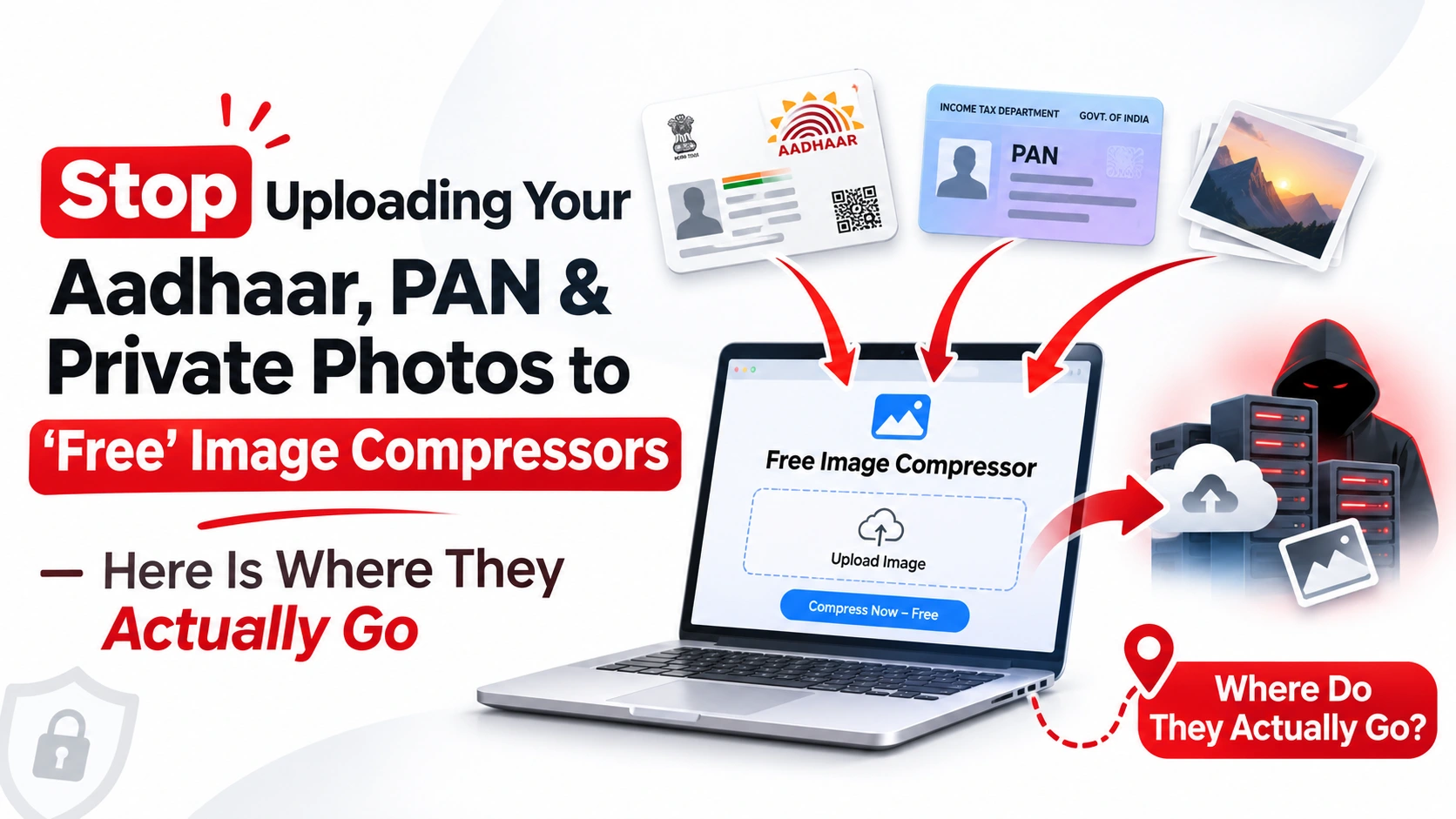
Stop Uploading Your Aadhaar, PAN & Private Photos to 'Free' Image Compressors - Here Is Where They Actually Go
Uploading Aadhaar, PAN cards, or private photos to free image compressors? Discover where your images go and how browser-based compression protects privacy.
Imagine you need to upload your Aadhaar card photograph to a government portal. The website accepts images under 100 KB, but your original photograph is 2 MB.
What do you do?
You open Google, search for a free image compressor, select the first result, upload your photograph, wait a few seconds, and download the smaller version.
Problem solved, right?
Not necessarily.
Before uploading another Aadhaar card, PAN card, passport photograph, bank document, or private family picture to a random online image compressor, consider one important question:
Where does your image actually go after you click Upload?
Many online image compression services process files on remote servers. Depending on their architecture and privacy policies, uploaded images may pass through cloud infrastructure, temporary storage, processing systems, and download servers.
That does not automatically mean every website misuses your photographs. However, it does mean you should understand the technology behind the tool before trusting it with sensitive information.
The good news is that image compression does not always require uploading your files to another company's server. Modern browsers can perform image compression directly on your device.
Let's understand how it works.
1. What Actually Happens When You Upload an Image to a Free Compressor?
Most people think an online image compressor simply makes a photograph smaller. Behind the scenes, different tools use completely different processing architectures.
A traditional server-based image compressor generally follows this workflow:
You select an image from your computer or smartphone.
Your browser sends the image across the internet to the website's server.
The remote server receives the uploaded file.
A processing system compresses or resizes the image.
The compressed version is sent back to your browser.
You download the resulting file.
This process is common in cloud-based applications. The critical detail is that your original image leaves your device.
Depending on the service, the uploaded file might be:
Temporarily stored on a cloud storage bucket (e.g., AWS S3, Google Cloud Storage).
Processed using server-side software and command-line utilities.
Kept in temporary storage caches until a cleanup cron job runs.
Included in automated operational backups, depending on server architecture.
Accessible to authorized personnel or third-party service providers under certain circumstances.
Some services automatically delete uploaded files after processing. Others retain files for an hour, 24 hours, or longer. There is no universal rule.
2. Why Uploading Aadhaar, PAN Cards, and Private Photos Is Risky
Not every photograph contains sensitive information. A landscape photograph or an unreleased web graphic generally presents fewer privacy concerns than an official identity document or intimate family portrait.
The risk escalates drastically when an image contains information that could identify you, facilitate financial fraud, or expose confidential personal details.
Aadhaar Card Photographs
An Aadhaar card image contains virtually everything needed for digital identity profiling:
Your full legal name.
12-digit Aadhaar number.
High-resolution biometric facial photograph.
Date of birth or year of birth.
Residential address information.
QR code containing cryptographic identity details.
Even if your intention is solely to reduce the file size for an official entrance exam, scholarship portal, or government application, uploading the entire document to an unknown third-party web tool introduces unnecessary external entities into your data custody chain.
Under UIDAI regulations (Aadhaar Act 2016 and subsequent security circulars published at uidai.gov.in), sharing unredacted Aadhaar copies with unauthorized third-party platforms is strongly cautioned against. UIDAI advises citizens to utilize 'Masked Aadhaar' (which obscures the first 8 digits) for identity verification whenever possible.
To independently verify that a compression tool processes your document locally without cloud transmission, you can execute a reproducible synthetic file test: create a dummy test JPEG, open browser Developer Tools (F12 > Network tab > Fetch/XHR filter), and click compress. A true client-side tool generates zero outgoing POST or PUT payloads containing file bytes.
PAN Card Photographs
Permanent Account Number (PAN) cards serve as prime financial identity proofs across India and contain:
10-digit alphanumeric PAN number.
Full legal name and father's name.
Date of birth.
High-resolution identity photograph.
Specimen signature image.
Sharing these details with an untrusted online utility increases the surface area for identity theft, unauthorized credit checks, and social engineering attacks.
Private Family and Personal Photos
Personal photographs can reveal far more than the visual scene. An original camera or smartphone photograph contains embedded EXIF metadata, which often includes:
Exact GPS coordinates of where the photo was taken (your home, workplace, children's school).
Camera or smartphone make, model, and serial number.
Precise date, time, and timezone of capture.
Lens details, exposure levels, and software revisions.
Whether this metadata remains intact in the compressed output depends on the compressor's processing method and output format. A photograph taken inside your residence may also expose family members, interior valuables, and private lifestyle details. The safest approach is to avoid unnecessary disclosure entirely.
3. Where Do Uploaded Images Actually Go?
There is no single answer for every online image compressor. The physical destination depends entirely on the website's technical architecture.
Here are the three primary destination paths:
A. Remote Cloud Servers
Most traditional compressors use cloud virtual machines or container clusters (AWS EC2, Google Compute Engine, DigitalOcean droplets) to execute binaries like ImageMagick, MozJPEG, or pngquant.
Your file travels across public internet backbones to a remote server. Depending on implementation, the file is written to ephemeral disk storage or database caches while processing queues execute. Even if files are deleted after 15 minutes, they may persist in temporary crash logs, caching layers, or automated volume snapshots.
B. Third-Party Processing Infrastructure & APIs
Many smaller utility websites do not host their own image processing servers. Instead, they act as simple frontends that pipe uploaded files to third-party commercial APIs.
In this scenario, your photo is transmitted not just to the website you visited, but also forwarded behind the scenes to an external SaaS vendor or third-party cloud provider whose data policies and geographic jurisdictions you have never reviewed.
C. Your Own Browser and Device (Client-Side)
There is a modern, privacy-preserving alternative: client-side in-browser image compression.
Instead of sending your photograph to a remote server, the website loads the image directly into your browser's local memory and processes it right on your device. Web technologies such as the HTML5 Canvas API, Web Workers, JavaScript, and WebAssembly make high-performance client-side quantization possible.
The client-side workflow operates entirely on your hardware:
You select an image from your device.
The browser reads the raw file bytes into local sandbox memory.
Compression and downsampling algorithms execute using your device CPU and GPU.
The browser generates the optimized image blob.
You download the final file directly to your drive.
In this architecture, the actual image file never leaves your computer or phone. This eliminates server storage risks and makes it ideal for processing government documents and personal photos.
4. Server-Side vs. Browser-Based Image Compression
Understanding the operational differences between these two architectures empowers you to choose the right tool for sensitive workflows:
Feature
Server-Side Compression
Browser-Based Compression
Image Processing Location
Remote third-party cloud server
Your local device CPU & GPU memory
Network File Upload
Mandatory (transmits entire original file)
Zero network upload (processed locally)
Internet Connection Required
Required for uploading & downloading
Only needed to load page (works offline once loaded)
Cloud File Retention Risks
Subject to server caching, logs & backups
Zero cloud storage; files never leave device
Speed & Queue Latency
Dependent on upload speed & server queues
Instant local conversion in milliseconds
Best For
Bulk enterprise batch jobs with huge pipelines
Identity cards, sensitive docs & private photos
5. How to Check Whether an Image Compressor Uploads Your Photos
You do not need to be a cybersecurity specialist to verify how an online image tool handles your data. Here is a practical 4-step audit you can run in seconds:
Step 1: Read the Privacy Policy
Look for explicit, unambiguous statements detailing file transmission, temporary caching, and data retention. Avoid services that rely solely on vague marketing slogans like "We respect your privacy."
Confirm whether the policy clarifies if files are transferred to remote infrastructure or processed locally in the client browser.
Using Google Chrome, Microsoft Edge, Firefox, or Brave:
Navigate to the image compressor tool.
Right-click anywhere on the page and select Inspect (or press Ctrl+Shift+I / Cmd+Option+I).
Switch to the Network tab.
Click the Fetch/XHR sub-filter.
Select a non-sensitive test image and click compress.
Monitor the network traffic.
If the tool is truly client-side (like FreeCompressImage.com), you will see zero outbound POST/PUT requests carrying file payloads or multi-part form data. If you see outbound network requests containing large payload sizes matching your file, your photo is being transmitted to a remote server.
Step 3: Check the Operator's Transparency
Check whether the website clearly identifies its operational principles, provides an accessible About page, offers a dedicated contact method, and details its technical architecture.
Step 4: Always Test with a Dummy Image First
Never use an original Aadhaar card, PAN card, or personal family portrait as your first test file on any new utility. Always verify the application behavior using a generic stock photo or non-sensitive graphic before processing sensitive files.
6. A Safer Way to Compress Aadhaar, PAN, and Private Images
If your objective is simply to compress a photograph to meet strict government application quotas (such as under 50 KB or 100 KB), you do not need to risk uploading it to an external server.
Instead, use a verified in-browser compressor such as FreeCompressImage.com. As detailed in our Privacy Policy and architecture documentation, all image resizing, target file size calculation, and format quantization take place strictly inside your browser's local sandbox memory. Zero image bytes are ever uploaded to cloud servers.
Click browse or paste your document directly from the clipboard (Ctrl+V / Cmd+V).
Step 3: Specify Your Target File Size
Government and entrance portals frequently mandate exact caps (e.g., "maximum 50 KB" or "between 20 KB and 100 KB"). Input your target size, and the adaptive binary search engine calculates the optimal compression ratio automatically.
Step 4: Execute In-Browser Processing
The HTML5 Canvas engine compresses the image locally in milliseconds without a single network request.
Step 5: Inspect and Download
Use the interactive before-and-after split slider to ensure all printed text, seal marks, and facial features remain crisp, then download the finished file.
Depending on your document submission requirements, other in-browser tools may be needed:
Need to resize multiple pages or photos simultaneously? Use our in-browser bulk image resizer for batch dimensions adjustment.
Need strict 35mm x 45mm or 2x2 inch biometric proportions? Use our online image cropper to frame exact aspect ratios.
Does the portal mandate a specific file extension? Use our client-side image format converter to convert smoothly between JPG, PNG, and WebP.
7. Does Image Compression Remove Personal Information?
A common misconception is that compressing an image automatically scrubs private metadata. In reality, compression and metadata stripping are two entirely separate technical operations.
Image compression focuses on reorganizing or discarding visual pixel redundancies to lower file weight. Metadata removal strips the EXIF, IPTC, and XMP data headers that store camera model, timestamp, and sensitive GPS coordinates.
Some lossy re-encoders drop EXIF data during the canvas export process, but others preserve it. If privacy is paramount, always inspect your photographs using our dedicated image metadata viewer to verify that GPS latitude/longitude and hardware identifiers have been purged before sharing.
Crucially, metadata stripping does not hide information that is visibly stamped into the photograph itself. If your Aadhaar number or address is legibly visible in the picture, metadata removal will not blur or conceal it. When you need to digitize text from documents without manual retyping, our client-side image-to-text converter (OCR) extracts text directly in your browser without uploading files to remote servers.
8. Other Image Privacy and Preparation Practices Worth Knowing
Comprehensive privacy and document preparation extends beyond compression. Here are crucial complementary techniques for preparing digital assets:
Check Image Resolution and DPI
Certain government visa portals, passport systems, and print providers enforce a strict 300 DPI resolution threshold. Use our image DPI checker to verify dot density and ensure physical print readiness.
Remove Unnecessary Background Details
For profile photos, portfolio avatars, or marketplace listings, removing distracting background clutter improves aesthetics. Our browser-powered AI background remover creates transparent cutouts directly on your device. However, do not digitally alter official government identity backgrounds if the issuing body mandates authentic originals.
Improve Image Quality When Necessary
If an existing photo is pixelated or below required minimum dimensions, an AI image upscaler can enlarge assets up to 4x while sharpening soft edges. Avoid using AI upscalers on official identity verification photos when an untouched camera original is required.
Protect Images Before Sharing
For commercial artwork, real estate previews, and sample document copies, applying a visible ownership overlay prevents unauthorized repurposing. Our online image watermark tool enables customized text and logo watermarking with configurable opacity and tiled security grids.
9. Image Compression Before Converting Images Into PDFs
Another frequent scenario where sensitive documents are handled involves compiling scanned identity papers, academic mark sheets, and bank certificates into a unified PDF document.
When users stitch uncompressed 5 MB smartphone captures into a single document, the resulting PDF often exceeds 20 MB or 30 MB, instantly triggering rejection from college admission portals and job application systems. Pre-compressing each individual image ensures your generated PDF remains compact, crisp, and within strict upload constraints.
If your top priority is striking the ideal balance between maximum byte reduction and optical clarity, also explore our detailed tutorial on compressing images without losing quality.
10. Common Mistakes People Make When Using Free Image Compressors
Even tech-savvy professionals frequently stumble into these common digital security and compression pitfalls:
Mistake 1: Assuming 'Free' Means No Trade-Offs
Free tools must fund infrastructure somehow. Many server-based utilities monetize through aggressive ad tracking or by aggregating behavioral data.
Mistake 2: Confusing HTTPS with Absolute Cloud Privacy
HTTPS encrypts traffic in transit between your browser and the server. It does not prevent the remote server from reading, logging, or caching the uploaded file once decrypted.
Mistake 3: Believing the 'Delete File' Button Clears Everything
A UI delete button triggers a flag in a database, but disk blocks, object storage versioning, and server backups may retain binary fragments for days or weeks.
Mistake 4: Uploading Entire Uncropped ID Cards
If a portal only asks for a passport photo, do not upload your full Aadhaar or PAN card. Crop out unnecessary numbers and residential addresses before compression.
Mistake 5: Neglecting EXIF Metadata
Camera snapshots embed precise geo-coordinates that pinpoint exact home locations unless stripped prior to sharing.
Mistake 6: Assuming Smaller Files Are Automatically Safer
File size is merely byte volume. Document security depends entirely on where the file was transmitted and who retains custody.
11. Why Browser-Based Compression Is Becoming the Gold Standard
Modern web browsers are no longer passive document viewers: they are high-performance execution environments powered by WebAssembly, multi-threaded Web Workers, and hardware-accelerated Canvas pipelines.
This paradigm shift unlocks tremendous benefits for privacy-conscious users and developers alike:
Privacy Compliance: Full alignment with strict data minimization standards (GDPR, CCPA, DPDP Act) because zero user data is ever stored on third-party servers.
Instant Performance: No network upload latency or waiting in remote job queues; compression finishes in milliseconds using local CPU/GPU cores.
Zero Bandwidth Waste: Mobile users avoid wasting cellular data uploading multi-megabyte raw photos just to receive a 100 KB compressed output.
Offline Capability: Once loaded, client-side tools can function seamlessly without an active internet connection.
By keeping file manipulation local to your device, you maintain complete custody of your documents at all times.
Conclusion
Reducing an image from several megabytes down to a few kilobytes should never require compromising your personal privacy or identity security.
Whether you are optimizing an Aadhaar card for an official portal, resizing a PAN card for a banking application, preparing client photos, or sharing personal family snapshots, always understand the technical architecture behind the tools you use.
Not all image compressors are built the same. Server-based tools require complete faith in remote infrastructure, while modern client-side compressors execute entirely inside your device's browser memory.
Ready to prepare your images with 100% privacy?
Visit FreeCompressImage.com to experience private, instant, browser-based image compression with zero server uploads. Your personal data deserves total protection.
Free Browser Tool
Compress Your Images Directly in Your Browser
Reduce file size down to 50KB, 100KB, or 200KB instantly. Zero server uploads, 100% private.
1. Is it safe to upload Aadhaar cards to free image compressors?
It depends entirely on the website's processing architecture. Server-based compressors transmit your file across the internet to remote cloud storage. For sensitive identity documents like Aadhaar, always prefer a client-side tool like FreeCompressImage.com that processes photos locally in browser memory without server uploads.
2. Do free online image compressors store uploaded photographs?
Many server-based tools store uploaded images temporarily in cloud buckets (such as AWS S3) for processing and caching, retaining files anywhere from 15 minutes to multiple days. In contrast, client-side compressors process images in local browser memory and never store or transmit your files.
3. Can websites access photos after I delete them?
If a photograph was uploaded to a remote server, clicking "Delete" in the browser interface only instructs their database to mark the file as deleted. File remnants may still linger in server caches, object storage versioning, or disaster recovery backups. With client-side tools, files never leave your device, eliminating this risk entirely.
4. What is client-side image compression?
Client-side image compression means the resizing and quantization algorithms run directly inside your web browser using your device's CPU and GPU via the HTML5 Canvas API and WebAssembly. No files are uploaded to external servers.
5. Does compressing an image remove its GPS location?
Not automatically. Image compression reduces pixel data, whereas GPS coordinates reside in EXIF metadata headers. While some compressors drop EXIF data during re-encoding, others preserve it. Use an image metadata viewer to verify that EXIF location tags have been stripped before publishing photos.
6. Can I compress private images without uploading them?
Yes. By using a browser-based tool like FreeCompressImage.com, your images are compressed locally in browser memory. You can verify this by checking that zero outbound file requests appear in your browser's Developer Tools Network tab during compression.
Try Our Free Image Tools
Apply these image optimization techniques directly in your browser with our 100% private, zero-upload tool suite.