freecompressimage logofreecompressimage
Tutorials• Published on Oct 19, 2026• 8 min read

How to Compress Images Without Losing Quality: A Step-by-Step Guide

Learn how to compress images without losing quality. Discover the best formats, practical compression steps, and tips to reduce image file sizes.

How to Compress Images Without Losing Quality: A Step-by-Step Guide

Executive Summary & Key Takeaways

  • •Lossless compression preserves 100% of image pixel data, ideal for graphics, screenshots, diagrams, and vector cutouts.
  • •Carefully configured lossy compression offers massive file size reductions (60% to 90%) with zero perceptible blur for everyday web use.
  • •Resizing image dimensions to actual display widths cuts excess pixels before compression even begins.
  • •Modern formats like WebP and AVIF deliver superior encoding efficiency compared to legacy JPEG and PNG.
  • •Client-side in-browser compression keeps your images 100% private with zero remote server uploads.
Large image files can slow down websites and eat up storage space. Reducing file size often raises a common question: will the image become blurry or lose detail?

Good news: you can easily compress images without visible quality loss. The key is picking the right format and setting suitable compression levels. Results depend on your original image, format, and compression method.

Whether you run a website, publish a blog, or share photos online, this guide shows you how to reduce image sizes while keeping them crisp and clear.

What Does It Mean to Compress an Image?

Image compression reduces the data needed to store an image. The goal is creating a smaller file that looks great for its purpose.
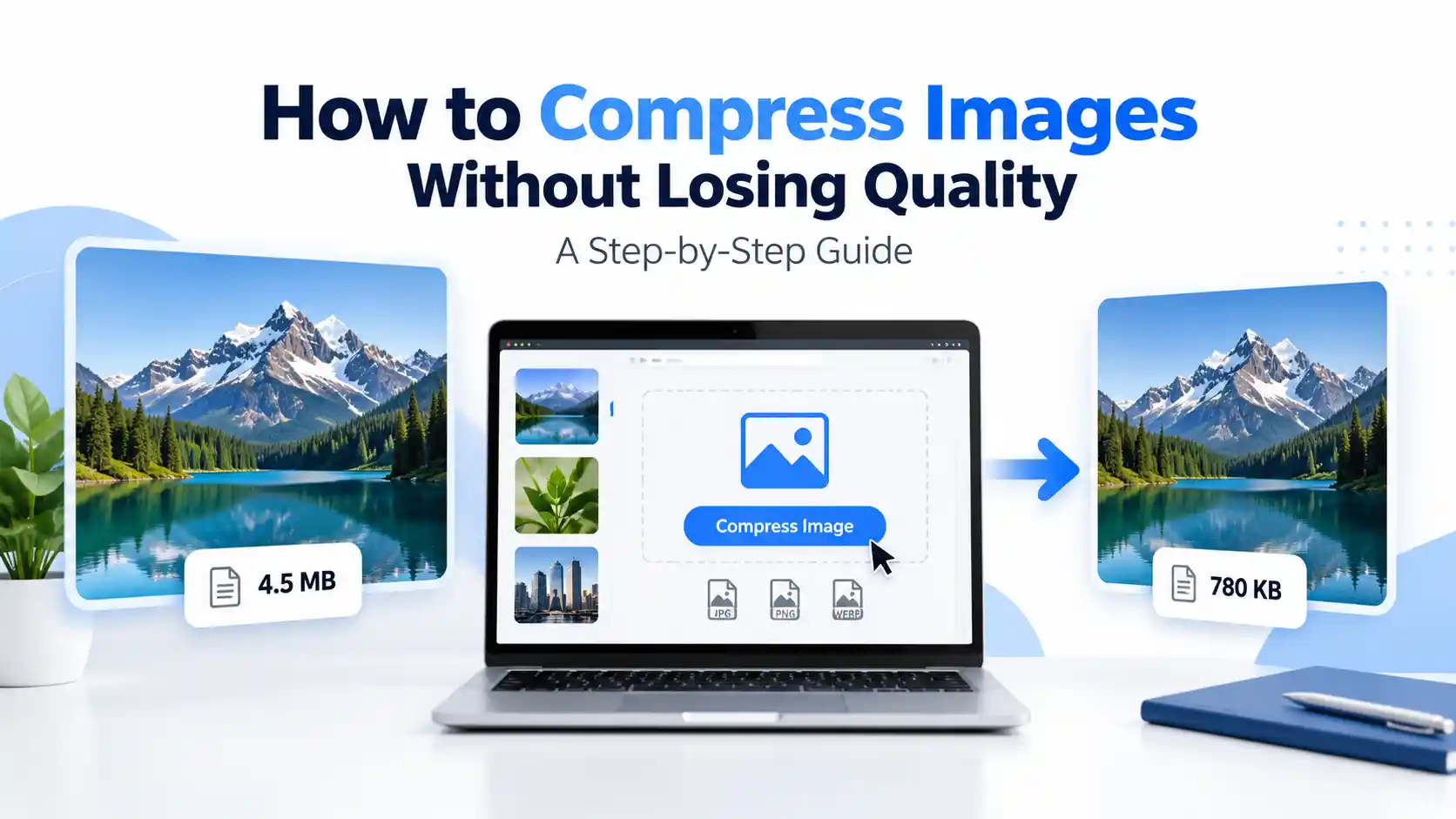
For example, a 5 MB photo is too heavy for a simple blog post. Optimizing that photo shrinks its file weight and makes it easy to load, store, and share.
Three key concepts are important to understand:
  • File size: The storage space an image takes up, measured in KB or MB.
  • Image dimensions: The width and height of an image, measured in pixels.
  • Visual quality: How sharp, detailed, and clear an image looks.
These factors work together, but they are not the same. Compression reduces file size without changing pixel dimensions. Resizing cuts the number of pixels to make files lighter. Both methods preserve visual quality when used correctly.

Can You Compress Images Without Losing Quality?

Yes, in almost all cases. Your result depends on whether you choose lossless or lossy compression.

1. Lossless Image Compression

Lossless compression cuts file size without removing any pixel data from the original picture.
It works best when you need exact fidelity. This includes screenshots, logos, diagrams, and files you plan to edit later.
However, lossless compression produces smaller percentage drops in file size. Savings depend on your image format and content.

2. Lossy Image Compression

Lossy compression reduces file size by removing subtle color details that human eyes cannot easily see.
Formats like JPEG rely on lossy compression. Modern formats like WebP and AVIF also support lossy modes.
With smart settings, the compressed image looks just like the original while taking up far less storage space. Extreme compression can cause blur, so keeping a balanced quality level is key.

Which Method Should You Choose?

Choose lossless compression when exact pixel preservation is critical. Choose lossy compression when you need lightweight files for websites, store products, or fast photo sharing.
For everyday web images, balanced lossy compression offers the best mix of small file size and sharp visuals.

How to Compress Images Without Losing Quality: Step-by-Step Guide

Follow these seven simple steps to reduce file sizes while keeping your pictures crisp.

Step 1: Choose the Right Image

Start with your original image whenever possible. Compressing an already compressed JPEG can add ugly artifacts and reduce quality.
Before you start, check your file size, pixel dimensions, and format. Make sure you know where the image will be shown. For instance, a main product photo needs more detail than a tiny blog thumbnail.

Step 2: Use an Online Image Compression Tool

Using a free online image compressor saves time. You do not need to install bulky desktop software.
Visit FreeCompressImage.com to start optimizing your images. Pick a compression setting that matches your needs. If your images are private, make sure the tool processes files locally inside your browser.

Step 3: Select a Suitable Compression Method

Pick settings that fit how you will use the image.
For photos, moderate lossy compression cuts file size while keeping visual quality high. For screenshots, text graphics, and icons, use lossless compression when available.
Do not pick the highest compression level blindly. A tiny file is not helpful if text becomes hard to read.

Step 4: Compress the Image

Apply your settings and process the image. The exact size drop depends on the original format, colors, and textures.
Photos with smooth gradients compress differently than detailed pictures with fine hair or textures. If the output looks blurry, choose a lighter compression level or try WebP format.

Step 5: Compare the Original and Compressed Images

Never judge your image by file size alone. Open both versions side by side and view them at their actual display size.
Check fine details, sharp edges, and text clarity. Also inspect skin tones and smooth color transitions. Zooming in helps spot artifacts, but remember to review the image at 100% scale too.

Step 6: Check the New File Size

Compare your new file size to the original. You can calculate the exact savings percentage with this simple formula:
File size reduction (%) = ((Original size − New size) ÷ Original size) × 100
For example, if a 2 MB (2,000 KB) image shrinks to 800 KB, your savings is 60%. Actual savings will vary from image to image based on content.

Step 7: Save and Use the Optimized Image

Once your compressed image looks crisp, save it to your computer. For websites, give the file a descriptive name and include clear alt text. Make sure its pixel dimensions match your layout.
Always keep a backup of the original file. You may need it later for future edits or print materials.

Best Image Formats for Compression

Choosing the right format makes a big difference in both file size and clarity.
Image FormatBest UseCompression Considerations
JPEG / JPGPhotographs and complex imagesLossy compression can produce smaller files with carefully selected quality settings.
PNGScreenshots, diagrams, and graphics requiring transparencySupports lossless compression, but photographs may remain relatively large.
WebPWebsite photographs and graphicsSupports lossy and lossless compression, as well as transparency.
AVIFModern web images where supportedSupports lossy and lossless compression and can offer efficient encoding, depending on the image and settings.

How to Reduce Image File Size Without Making Images Blurry

Compression is only one part of image optimization. These practical tips help you maintain a great balance between size and appearance.

Resize Images to Their Actual Display Dimensions

Do not upload a 4,000-pixel photo when your page only displays it at 800 pixels wide. Resize the image to its actual display width first. Resizing removes millions of unneeded pixels before compression starts.

Avoid Repeated Compression

Opening and saving a lossy JPEG over and over degrades image quality. Always edit from your original master file. Export your final compressed image only once.

Choose Appropriate Quality Settings

High quality preserves detail but creates larger files. Low quality makes files lighter but can introduce blur. Test settings on a few sample photos instead of using one harsh setting for everything.

Use the Right Format for the Content

Photos, logos, and screenshots have different needs. Matching the format to your content keeps files light and visual quality high.

Inspect Important Details

Always inspect text, logos, faces, and fine textures. A compression level that looks great on landscapes might blur fine text in screenshots.

Common Image Compression Mistakes to Avoid

Even with great tools, common mistakes can harm your results:
  • Compressing images too aggressively: Too much lossy compression causes blur and blocky artifacts. Lower your compression level if images look fuzzy.
  • Ignoring pixel dimensions: Compressing huge photos without resizing leaves files heavier than necessary.
  • Using PNG for everything: PNG is great for graphics, but it creates huge files for normal photos.
  • Converting formats blindly: Changing format does not always reduce file size. Check the result before deleting originals.
  • Deleting master copies: Keep uncompressed originals for future edits and prints.
  • Assuming small files solve all SEO issues: Image speed helps, but great content and technical health matter just as much.

Why Image Compression Matters for Website Performance

Images make up over 60% of total webpage weight. Heavy pictures slow down your load times and frustrate mobile visitors.
Optimizing your images speeds up page delivery and improves Google Core Web Vitals. Better speed creates smoother experiences and helps keep visitors on your site.
Key best practices for web performance include:
  • Serve images at exact display widths.
  • Use responsive image markup for mobile screens.
  • Keep total hero image weights under 150KB.
  • Add explicit width and height attributes to avoid layout shifts.
  • Preload key above-the-fold hero images.
  • Keep scripts and third-party code minimal.
Optimize your images as part of an overall website performance plan.

Conclusion

Compressing images without quality loss comes down to three steps: pick the right format, set smart compression levels, and check your final image. Use lossless compression for diagrams and icons. Use lossy compression for photos and web graphics.

Always resize dimensions to match your layout, avoid repeated re-saving, and keep original backups.

Ready to compress your photos? Visit FreeCompressImage.com for instant, free, and private in-browser compression.
Free Browser Tool

Compress Your Images Directly in Your Browser

Reduce file size down to 50KB, 100KB, or 200KB instantly. Zero server uploads, 100% private.

Launch Compressor

Frequently Asked Questions

1. Can I compress an image without changing its dimensions?

Yes. Compression reduces file size while keeping exact pixel dimensions intact. Lossless compression preserves identical pixels, while lossy compression removes imperceptible data.

2. Does compressing an image reduce its quality?

Not necessarily. Lossless compression preserves 100% of pixel fidelity. Lossy compression removes unnoticeable color nuances, keeping images sharp at normal view.

3. Which image format is best for smaller file sizes?

WebP and AVIF deliver the smallest files for web display. JPEG works well for photos, while PNG is best for graphics with transparency.

4. How much can I reduce an image's file size?

Savings typically range from 50% to 90% depending on the format, original size, and content. Always check your output to ensure clarity.

5. Is online image compression suitable for website images?

Yes. Online tools make it fast and simple to optimize web assets. Pick a tool that runs in-browser for complete privacy.

6. Does image compression improve SEO?

Yes. Lighter images load faster, boosting Google Core Web Vitals (LCP) and user experience. Fast pages keep visitors engaged longer.